
This post may contain affiliate links. Please read my disclosure policy.
If you know me at all, you know I’m all about efficiency and becoming a more effective editor. There are so many repetitive tasks in editing that can steal your time and attention, which is why I’m sharing my favorite time-saving tool with you in today’s episode of The Modern Editor.
Allow me to introduce you to TextExpander, one of my favorite editing tools that doesn’t use generative AI.
-
Hey there, edibuddies. I want to continue our previous discussions about how we can be the best editors we can be without the use of generative AI. And the tool we're going to talk about today is honestly, in my opinion, a must-have for any editor or anyone who does repetitive tasks. So let's dig right in.
Welcome to The Modern Editor Podcast, where we talk about all things editing and what it's like to run an editorial business in today's world. I'm your host, Tara Whitaker. Let's get to it.
If you're a regular podcast listener, you already know this, but if you're a new listener, know that I am a big, big fan of being effective and efficient in our editing without losing our humanity. And how do we do that? We do that by using tools at our disposal that don't use generative AI. And they exist! I know, shocker.
I've covered two on the podcast previously, which were PerfectIt and macros, and today we're going to cover a third with more to come, but that tool is TextExpander. So this tool creates shortcuts for longer text that you find yourself typing repeatedly. They have a free trial. I highly suggest doing that, and it's also $40 a year if you pay annually, so it's super affordable. It's not some super-duper expensive, wildly priced tool. It's very affordable for what it does.
Now, there are other similar tools out there, like Espanso and aText. So like I said, do the free trials. See what works best for you. I'm gonna focus on TextExpander because that's what I use, but the core concepts are there. They work the same way. They just have different interfaces and whatnot.
So you can run TextExpander on your computer in a bunch of different ways. You can download an app. You can use it in your search engine. There's a pop-up window that you can bring up, and then there's also keyboard shortcuts. You can use it in Word, you can use it in Google Docs or search engines or tons of different applications. You just have to, you know, try it out to see if it works. I haven't come across something I haven't been able to use it in yet, though. And apparently there's also a mobile version coming soon, so that would be amazing.
And I am not joking when I say that literally anyone can benefit from using TextExpander. It's not an editing tool per se. Like, it wasn't made for editors. I think it was made for customer service teams, 'cause if you think about it, you know, when you contact customer support for something, they are repeatedly saying the same info over and over and over again. So I can see how this would be super helpful to them.
But that's what's so cool about the tool is that anyone can adapt it to what they need. So for editors, we tend to type the same queries over and over again. We tend to explain what a certain editing service entails, you know, things like that. So we can use it in a way that works for us, and then another person in a totally different industry can adapt it for their use, which I think is really cool.
And just a quick note, I will say that I talked about, you know, using a tool to be more efficient, but I also love a tool that helps us with our physical health because if you're using TextExpander, you're using fewer keystrokes. So in theory, you have less wrist and hand strain, which I think we can all use given how much we type and are using keyboards. Anything that can help us reduce that is amazing, and TextExpander definitely does.
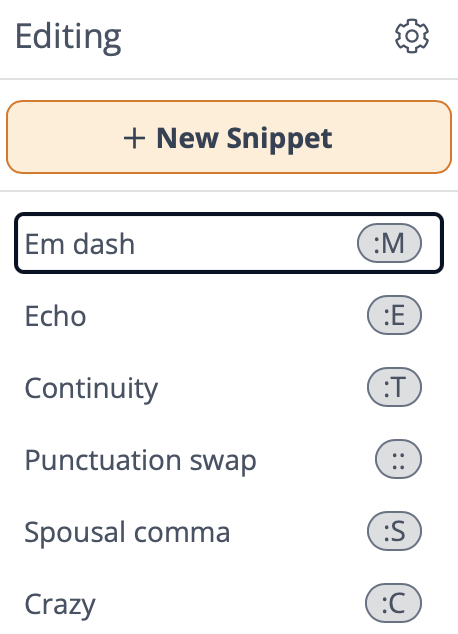
Okay, so how does it actually work? This is kind of, it's an interesting thing to try to explain via audio. It's a little bit easier when I can show you on a computer, but we're gonna do the best we can. The foundation of TextExpander is a snippet, and a snippet is just a combination of the content you wanna reuse and then the abbreviation you type to use it. And I'm gonna put some screenshots in the show notes so you understand what I'm talking about.
So let's run through some examples here. So something that I am constantly flagging in the books I copyedit still is when an author uses a food descriptor for skin color. So for my query, I write essentially the same text over and over about why we don't use food descriptors, and then I link to the Writing With Color blog post that explains it in further detail, and then there's also another blog post that gives alternatives.
So every time I would come across this, I would have to, you know, create the comment, I'd have to go into my bookmarks, grab the links for the articles, write out the query. Like, it doesn't take an exorbitant amount of time, but it takes enough time that it was annoying, right? But now I've created a snippet for it.
So all I do now is when I come across that in a manuscript, I create a comment in Word, and the snippet or the abbreviation I chose was “:skin.” I type “:skin” and boop, that whole query just magically appears. It's got the links, you know, the hyperlinked text. It's got the full query written out. I make some adjustments, of course, to make it applicable to what I'm talking about, like I don't have it be super generic, but the hard part is done. And it's so quick and it has made such a difference.
Another one that I use quite often is flagging the word “crazy” when it's used in a potentially offensive manner. Same thing. I have an article that I refer to that explains it in further detail, gives alternatives. Instead of going to the bookmark, copying and pasting the text, typing out my query, linking the text, blah, blah, blah, all I do is type “:C” and boom, it pops up.
And I usually don't have to adjust it because it's pretty straightforward. I don't really have to add or adjust it because it's, you know, there's not a different food descriptor, for example. It's basically just, "Hey, you might not wanna use this word. Here's why. Here's some alternatives."
I also have snippets for almond-shaped eyes, which is still a thing I come across, certain continuity flags. I have even created one for the em dash, y'all, which why I waited this long in my life to do that is beyond me, but all I have to do is type “:M” and an em dash appears wherever I want it. You know how much that makes my little em dash loving heart happy.
But you can do the same thing for whatever things that you do repeatedly. If you use a lot of emojis, create them for emojis. You can use it if you're putting your bio in things, if you're answering emails that are the same question and you've got a similar answer over and over again. Like, all of these things. The sky is literally the limit, and I know that's kind of blah, but it really is.
And I did a whole walk-through of this inside the Freelance Editors Club, and since then we have been sharing the snippets we're all coming up with. So my list just continues to grow. I assume it will continue to do so, and it just makes me so happy to use it. Like, I know that's so nerdy, but I love it, and I feel like you all would understand the best.
You know, it's helping my physical health. It's making me more efficient. Things just bloop appear when I want them to. I have brain space to use for the things that can't be shortcutted. Like, I don't know if that was a word, but we're gonna use it as a word. It's just amazing. Like, I cannot sing TextExpander's praises enough.
So, and I know that it's been around for a while. I know editors who have been using it for many years. I'm a little late to the game, which I tend to be on a lot of things. But what about you? Do you use TextExpander? Have you wanted to use it but maybe were a little intimidated? I promise it's nothing like macros, even though those aren't as intimidating as they appear to be,
This is such a simple tool. I would love to hear if you use it. I'd love to hear the snippets you use, 'cause I'm always looking to add to mine. And if you're like, "I love this episode, Tara, but I really need to see what things look like," hop over into the Freelance Editors Club. You can do it for free and check it out. You can do that whenever you'd like. Okay, that's probably enough of my fangirling over TextExpander. In short, highly recommend.
And until next time, keep learning, keep growing, and remember that tools do exist for editors that can legitimately make life easier without causing harm.
Thank you so much for tuning in to today's episode. If you enjoy The Modern Editor Podcast, I would be so grateful if you left a review over on Apple Podcasts or wherever you consume podcasts. And don't forget, you can head to TaraWhitaker.com to connect with me and stay in touch. We'll chat again soon.
What is TextExpander?
TextExpander is a tool that creates shortcuts for longer text you find yourself typing repeatedly. It’s a super affordable tool at just US$40 per year, and they also offer a free trial.
There are a few ways to run TextExpander, including:
Downloading an app
Using it with Microsoft Word and Google Docs
Adding it to your search engine
There’s also a mobile version coming soon.
As editors, we often find ourselves typing out the same queries over and over again or re-explaining our services to a new potential client. With TextExpander, you can save your responses and quickly type out the shortcut instead of retyping the whole thing.
How TextExpander Works
The foundation of TextExpander is “snippets,” which include the content you want to reuse and the abbreviation you want to type to use that content.
Here’s an example of how I use it while editing:
If an author regularly uses food descriptors for skin color, I would have to retype the same query about why we don’t do that, plus copy/paste resources to helpful blog posts that offer alternatives. Every time I came across this, I’d have to start from scratch with my query.
With TextExpander, I created a snippet for this issue, so now all I have to do is add a new comment to the doc and type in the abbreviation, and my comment and links will show up.
I’ve created snippets for multiple issues I have to address regularly, and it’s saved me tons of time and hassle. You can even create snippets for things like em dashes and emojis.
TextExpander also saves me time on the admin side of running an editing business. I don’t have to type the same response to common questions I get over and over again. I’ve created snippets that I can use to make responding to emails and client messages much faster.
Have you tried TextExpander? Maybe it’s nerdy of me, but I love this tool and can’t sing its praises highly enough!
Important Sections:
(1:07) What is TextExpander?
(3:51) How TextExpander Works